Saturday, April 23, 2011
Monday, April 18, 2011
How to change, add & remove search box providers on Internet Explorer 8
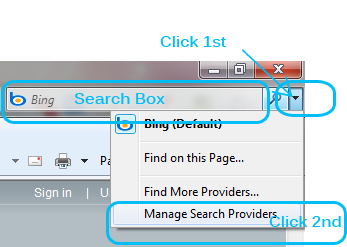
Click image to expand, image 1.
Have you been using Google, Bing or any other favorite search provider in your search box on Internet Explorer 8? And now you’ve got a new computer or somebody changed your settings and… Guess what? Your search box now has a different search provider.
Today we are going look at how to change default search provider or add and remove search providers in the search box on IE8.
1- Launch Internet Explorer 8 (IE8).
2- Look at the top-right in the Internet Explorer 8 window, click the downward arrow as shown in image 1 above(Click 1st), a menu will appear and click Manage Search Providers on the list.
3- In Manage Add-Ons window, make sure that Search Providers is selected, then click on Find more search providers…
Sunday, April 17, 2011
Transform Windows XP into Windows 7 without using Customization Pack
How to Change Windows xp look Like Windows7 Easy
Windows 7 provides lots of new features along with a newly designed interface. It looks very similar to Windows Vista but there are many GUI changes like redesigned taskbar, Explorer, new boot screen and login screen, etc.
Windows 7 provides lots of new features along with a newly designed interface. It looks very similar to Windows Vista but there are many GUI changes like redesigned taskbar, Explorer, new boot screen and login screen, etc.
If you are still using Windows XP but want to enjoy the new Windows 7 look, then this tutorial will definitely help you.
After following this tutorial, you'll get the same Windows 7 look in your Windows XP. Following is a list of things which are going to change after following this tutorial:
Windows 7 How To Tips and Tricks

In this list of Windows 7 How To 's you will find solutions to your problems.
You can ask your how to Windows 7 questions to us in our Windows 7 Forums and we will add the solution as a how-to for Windows 7 here in this Win7 tips & tricks page.How to get Windows 7
MSDN Subscribers can get Windows 7 free by downloading and installing using their MSDN subscription for the Windows 7 installation and the product keys.If you are not a MSDN Subscriber, you can download and evaluate the Windows 7 RC (Release Candidate) by downloading following the instructions at Windows 7 Downloads pages.
You can get Windows 7 by upgrading or pre-ordering Windows 7 Editions. Microsoft enables Windows customers to upgrade their Windows Vista system free of charge. So buying a PC with Windows Vista running on you can upgrade to Windows 7 as the Windows 7 is released for customers.
Windows Backup using Windows 7 Backup Software
Windows 7 Backup and Restore software is for backing up and restoring data which can be easily used by Windows 7 users.
Just like many other Windows 7 tools, Windows 7 Backup and Restore feature is developed for making daily tasks easier for Windows users.Windows 7 Backup software provides the user interface Windows Backup and Restore Center where you can manage to back up your data and restore data.
Although we will see in the following sections in this Windows Backup guide, Automatic File Backup feature in Windows 7 Backup and Restore utility enables you keep your backup data up-to-date and safe without your interaction each time.
Subscribe to:
Posts (Atom)